Before you begin
- Start from the workspace that should own the YouTube channel.
- Use the Google account that owns or manages the channel you want to publish to.
- If several Google sessions are open, pick the right one before continuing.
1. Start YouTube connect
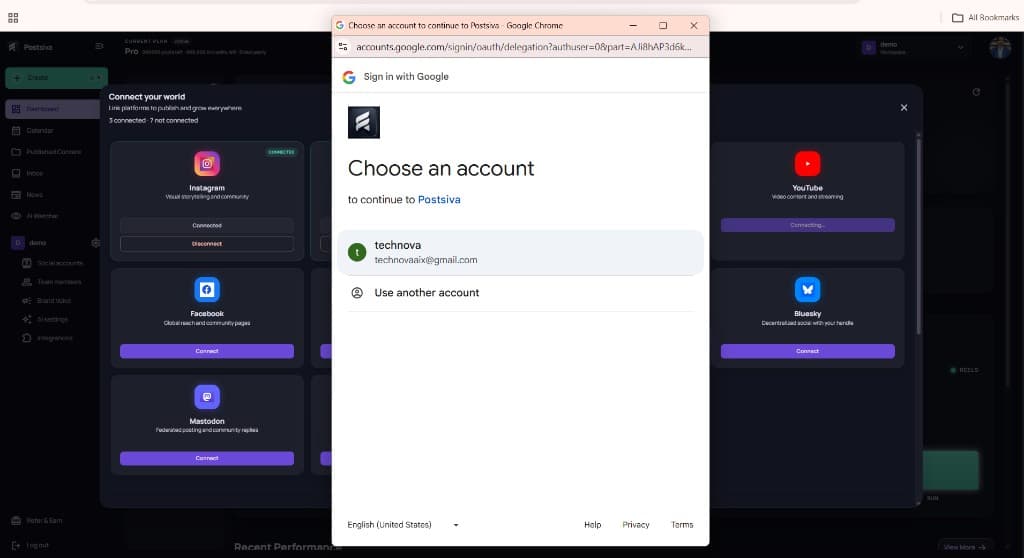
In Connect your world, select Connect on YouTube. The card shows Connecting… while Google sign-in opens.
2. Choose a Google account
Select the Google account that should continue to Postsiva (or Use another account if the listed one is wrong).
3. Grant YouTube access
Review what Postsiva wants access to on your Google Account (manage videos, view the account, and related YouTube permissions), then select Continue.
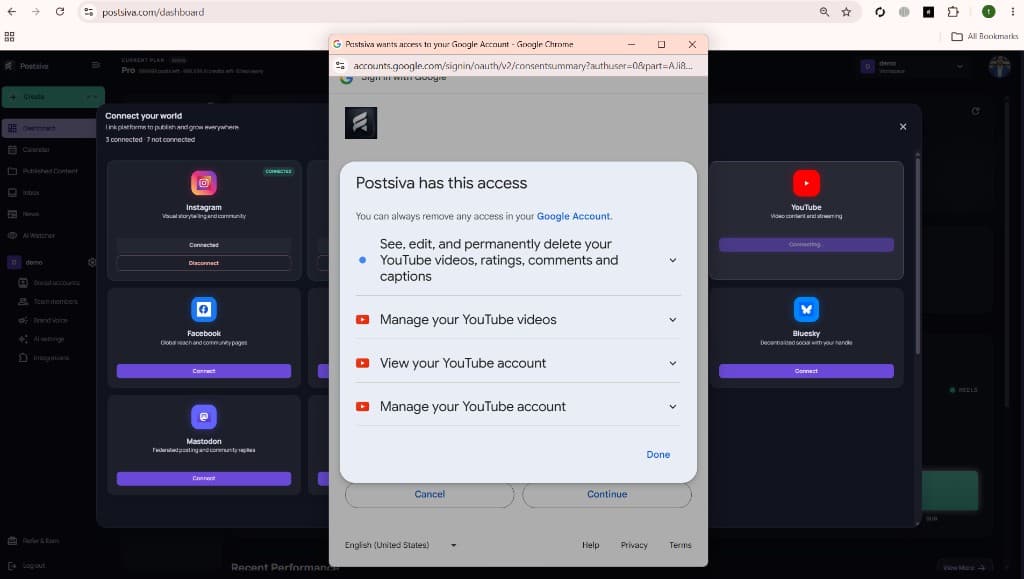
Selecting Cancel stops the connection. You can connect another channel later from the YouTube card.
4. Confirm the channel
When OAuth finishes, YouTube should show Connected. Use Connect another channel if you manage more than one destination in this workspace.