Before you begin
- Connect from the workspace that should own this Instagram channel.
- Use the Instagram login that owns the profile you want to publish from.
- Postsiva needs a professional Instagram account (Creator or Business). Personal accounts must convert during the connect flow.
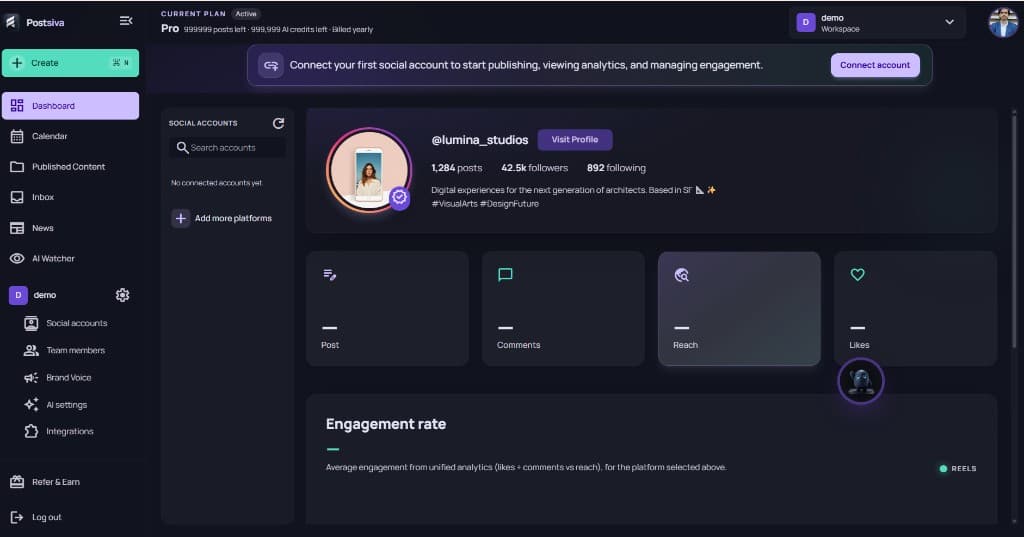
1. Open Connect account
On the dashboard, use Connect account (or open Social accounts → Add more platforms) to start linking channels.
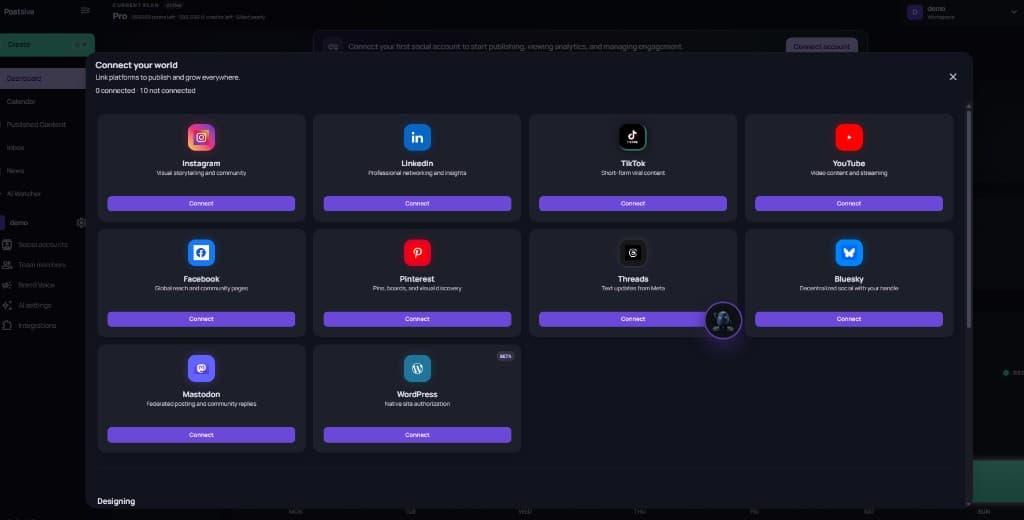
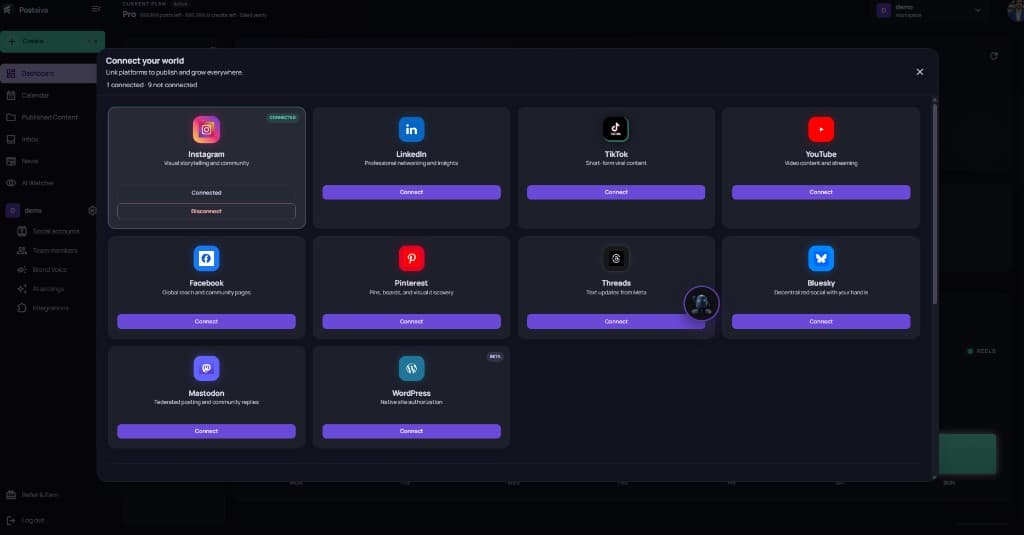
2. Open Connect your world
The Connect your world modal lists every platform you can link. Status shows how many accounts are connected.
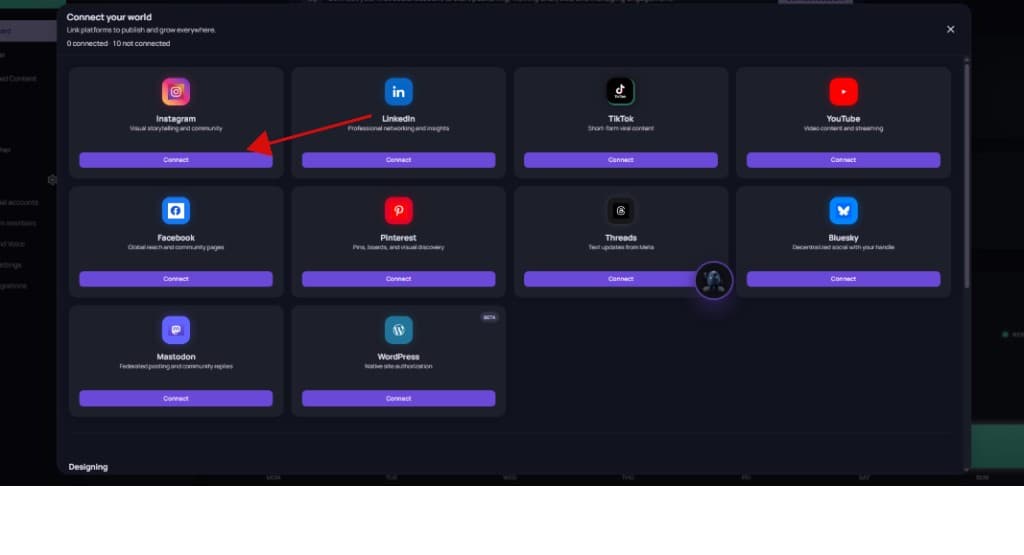
3. Click Connect on Instagram
Find the Instagram card and select Connect to start the secure Instagram / Meta sign-in window.
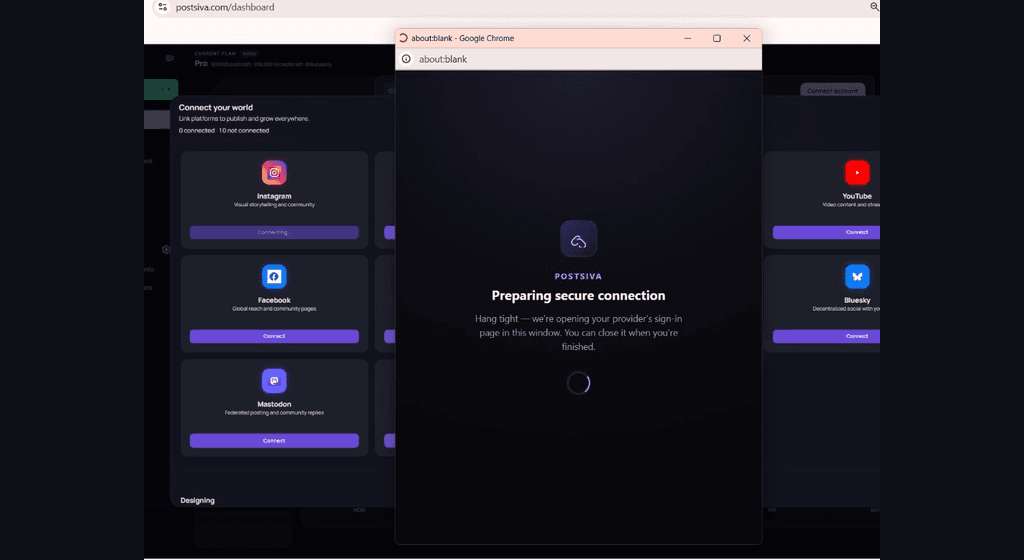
4. Wait for the secure connection window
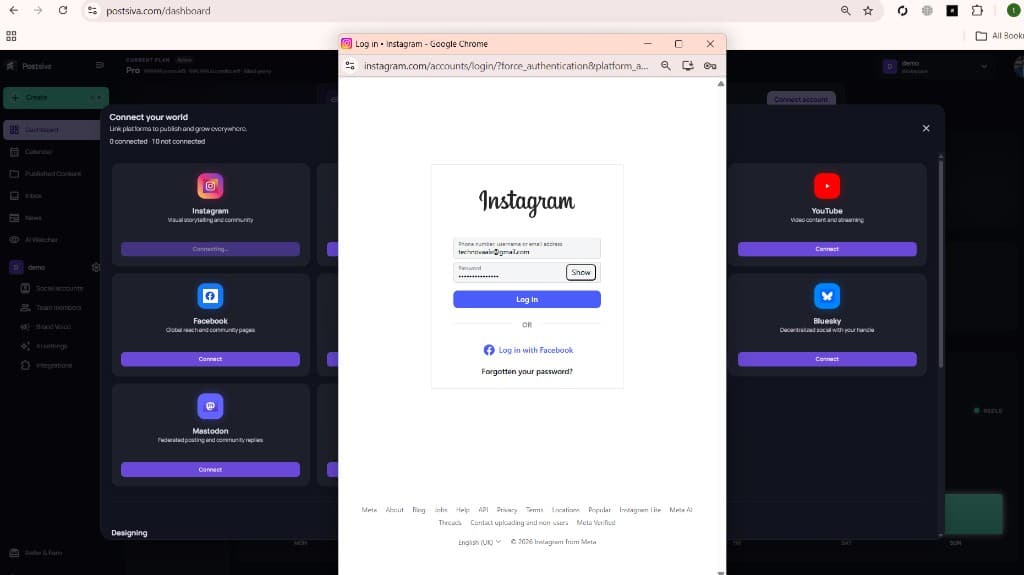
Postsiva opens a provider window while Instagram shows Connecting…. Keep that window open until sign-in finishes.
5. Log in to Instagram
Sign in with the Instagram username or email for the account you want to connect, then continue.
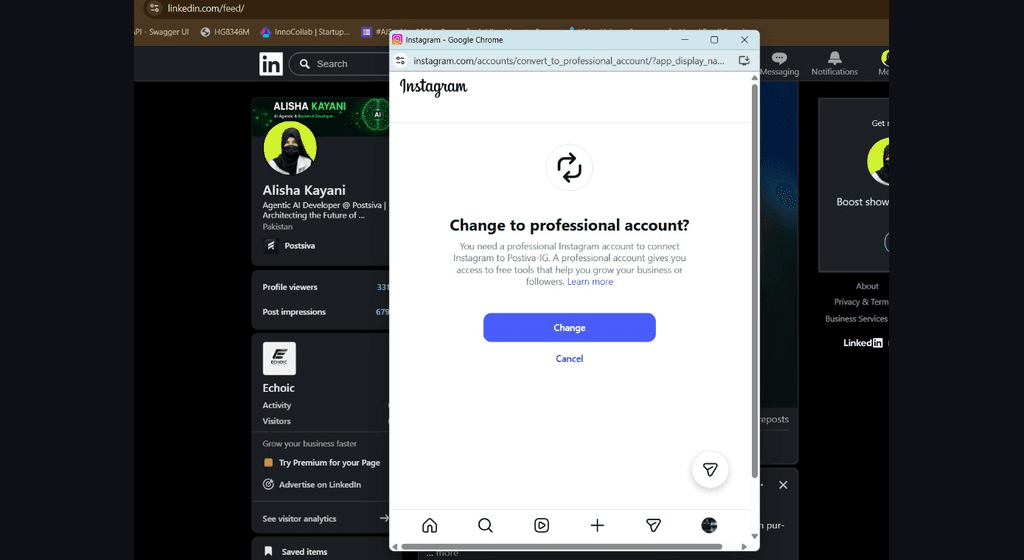
If Instagram says your account is personal
Instagram may ask you to change to a professional account before Postsiva can connect. Choose Change to continue.
- 1
Change to professional account
When you see “Change to professional account?”, select Change. Postsiva cannot finish Instagram connect on a personal profile.
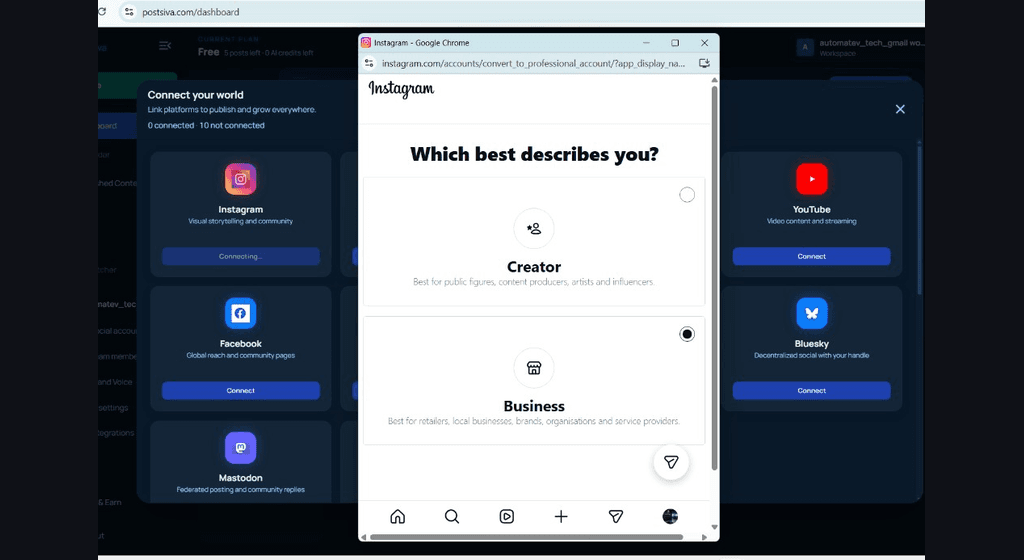
- 2
Pick Creator or Business
Choose Creator (public figures, creators, influencers) or Business (brands, shops, local businesses). Either type works with Postsiva.
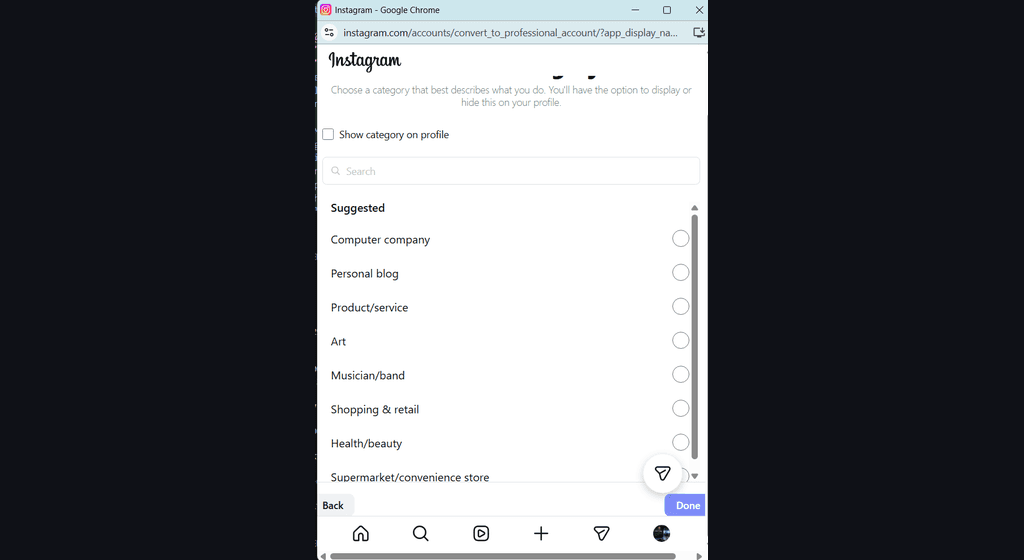
- 3
Choose a category
Pick the category that best describes you, then select Done. You can hide the category on your profile if you prefer.
- 4
Confirm it is ready
When Instagram shows that your business or creator account is ready, continue so Postsiva can request permissions.
You can also convert in the Instagram app later: Settings → Account type and tools → Switch to professional account — then reconnect in Postsiva.
Creator or Business selection
On “Which best describes you?”, select Creator or Business, then continue.
Choose your category
Search or pick a suggested category, then select Done.
Professional account ready
Instagram confirms your business or creator account is ready. Continue so you can allow Postsiva access.
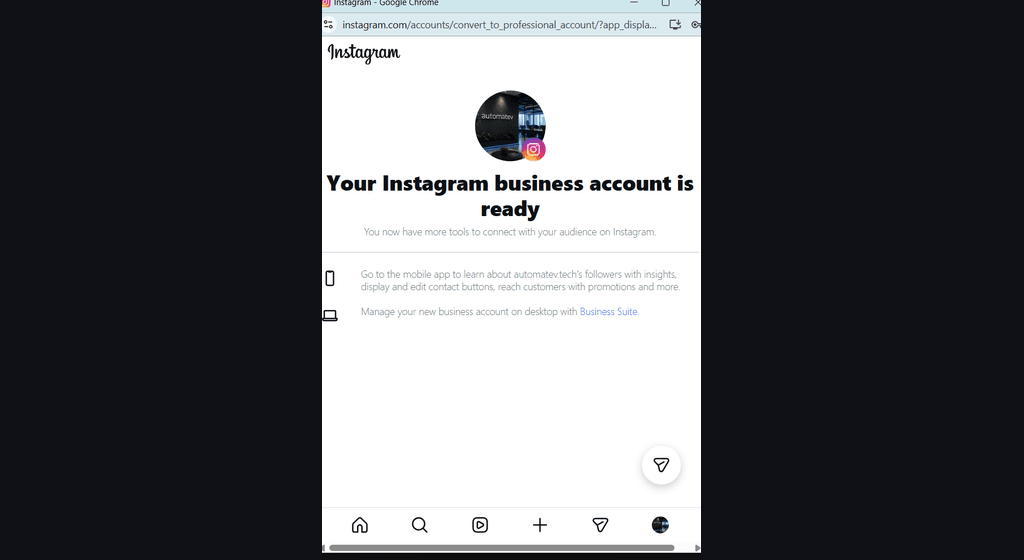
6. Allow Instagram permissions
Postsiva-IG asks for access such as profile and media (required), publishing content, comments, messages, and insights. Leave required items on, review optional toggles, then select Allow.
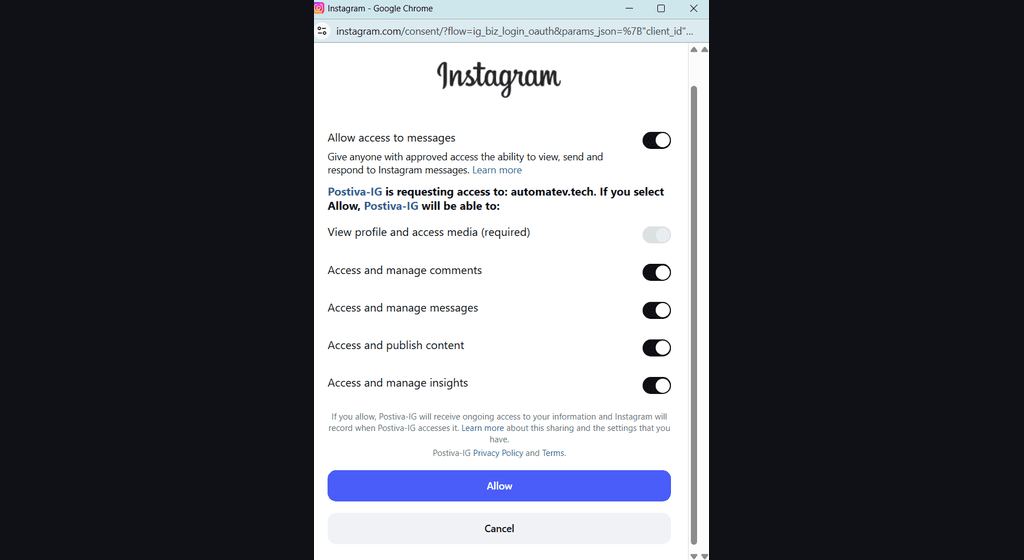
If you cancel or deny required permissions, Instagram will not stay connected. Start Connect again and select Allow.
7. Confirm Instagram is connected
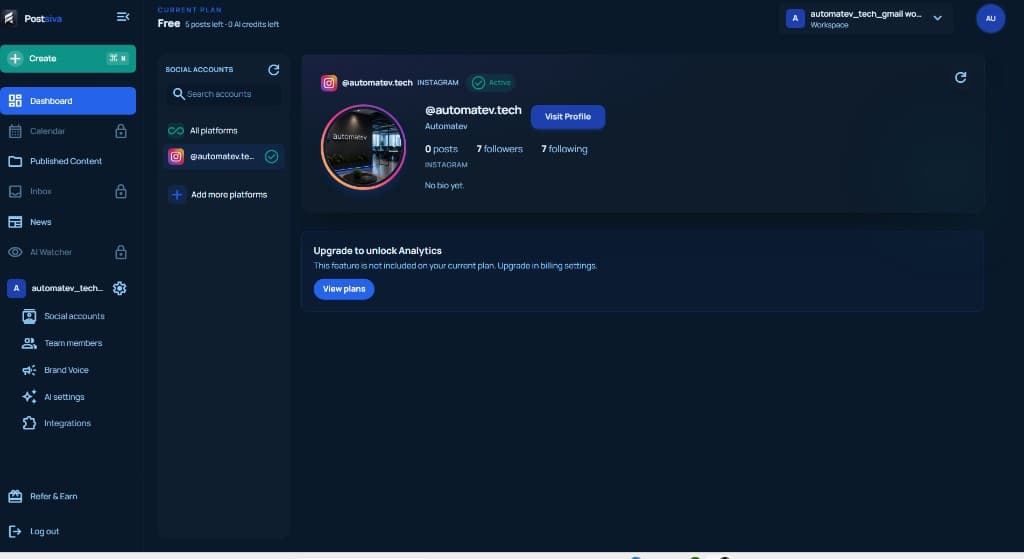
Back in Connect your world, Instagram should show Connected. On Social accounts you should see the handle as Active.
Success in Social accounts
Open Social accounts in the workspace sidebar to see the connected Instagram profile, Active status, and options to add more platforms.
If connect fails
- Confirm the account is Creator or Business, not Personal.
- Use the Instagram login that owns the profile.
- Allow required permissions on the consent screen.
- Check whether the same Instagram is already connected in another workspace.
- Close stuck popups, then try Connect again.