Before you begin
- Connect from the workspace that should own LinkedIn drafts, posts, and analytics.
- Use the LinkedIn login that owns the profile or has admin access to the organization page you want to publish to.
1. Open Connect your world and start LinkedIn
In Social accounts (or Connect account on the dashboard), open Connect your world and select Connect on the LinkedIn card.
2. Sign in to LinkedIn
Postsiva opens a LinkedIn sign-in window. Enter the email or phone for the account you want to connect, then select Sign in.
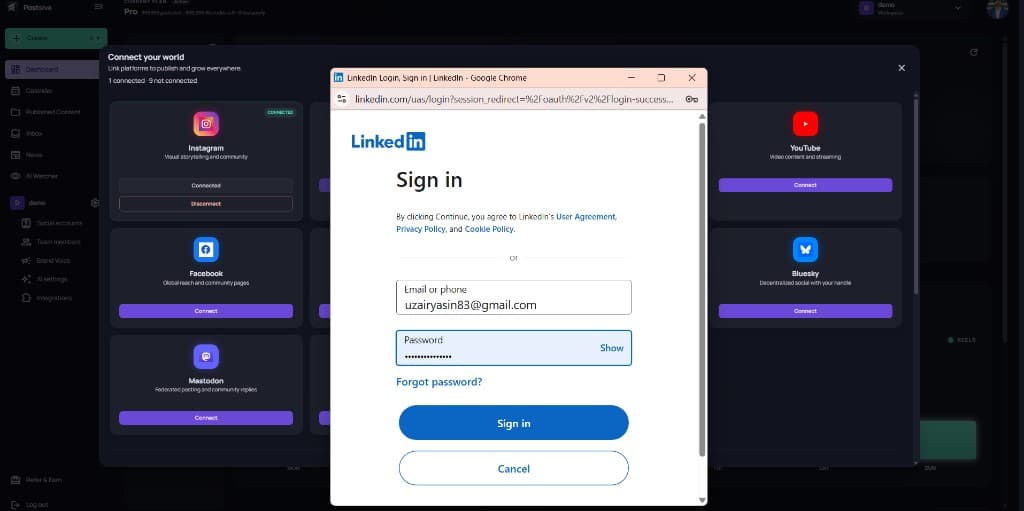
Keep the popup open until LinkedIn finishes. Closing it early cancels the connection.
3. Allow Postsiva access
On the LinkedIn Authorize screen, review what postsiva-analytics would like to do (profile, posts, analytics, and organization permissions as listed), then select Allow.
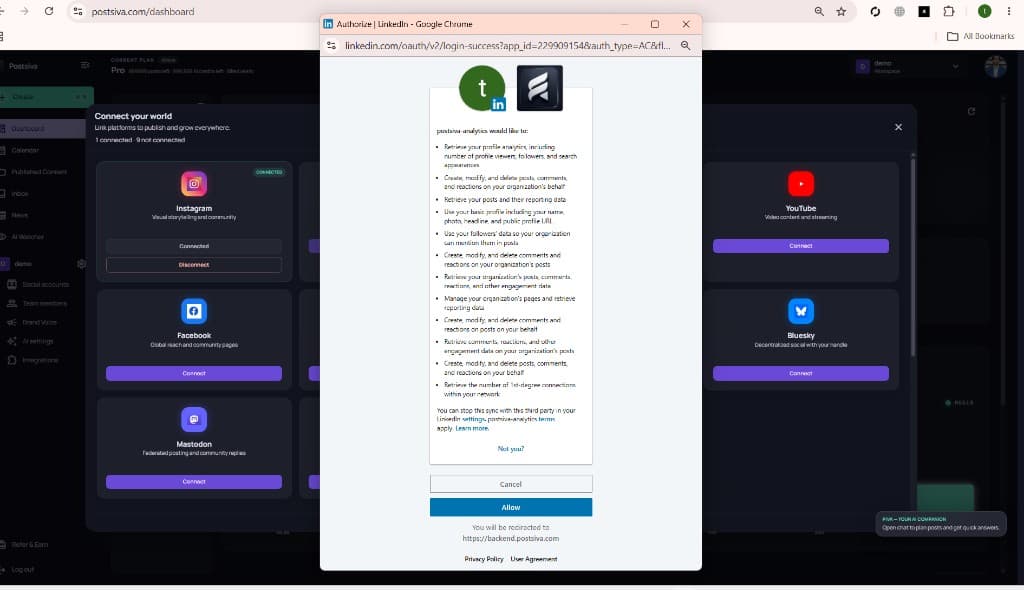
You will be redirected to backend.postsiva.com to finish linking. If you select Cancel, LinkedIn will not stay connected.
4. Confirm LinkedIn is connected
Back in Connect your world, LinkedIn should show Connected with Disconnect available. Status counts update (for example 2 connected).
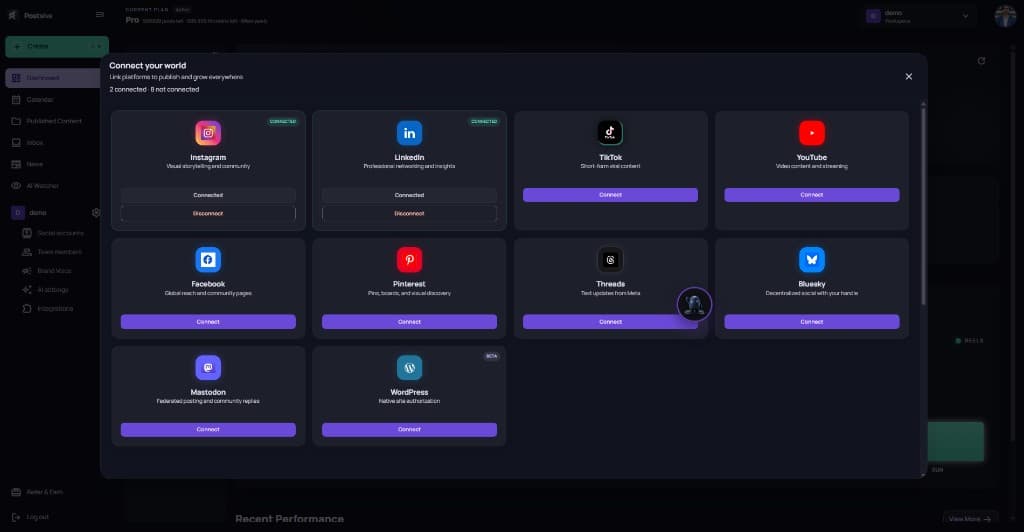
If connect fails
- Sign in with the LinkedIn identity that has posting rights for the profile or page.
- Select Allow on the consent screen — required permissions must stay granted.
- Confirm you started Connect from the correct workspace.
- Close stuck popups, then try Connect on LinkedIn again.