Open Create post
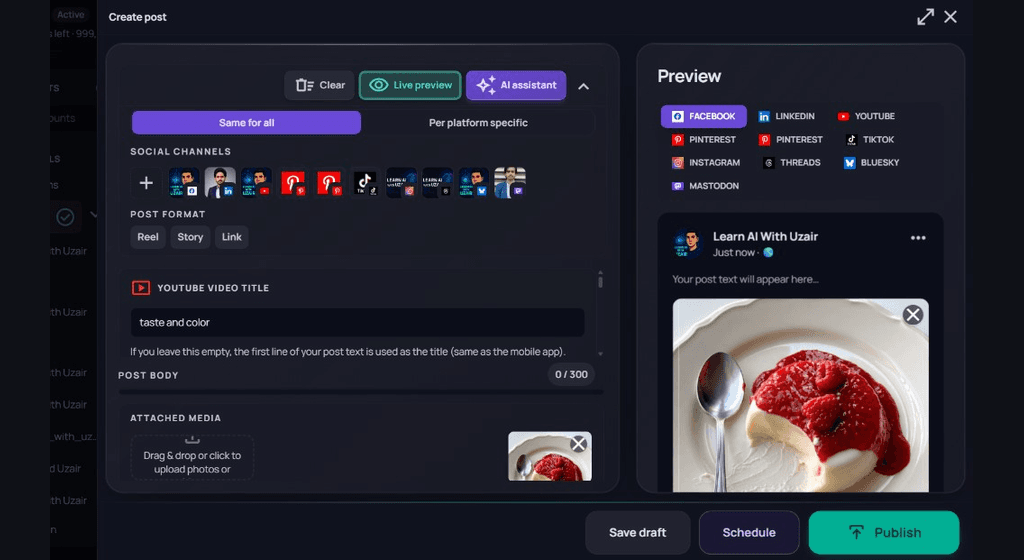
Create post is the unified composer for every connected channel. Use Same for all for shared copy, or Per platform specific when a network needs different text or media. Turn on Live preview to see how the post will look.
What you can set
- Social channels — select the accounts to publish to, or use + to add more.
- Post format — Reel, Story, or Link when the selected networks support them.
- Network fields — for example Pinterest pin title or YouTube video title when those channels are selected.
- Post body and Attached media — write the caption and upload photos or videos.
Live preview for all channels
Turn on Live preview. With Same for all, one draft feeds every selected channel. Use the Preview pills (Facebook, LinkedIn, Pinterest, Instagram, TikTok, Bluesky, and others) to switch networks and confirm text, media, and layout before you Save draft, Schedule, or Publish.
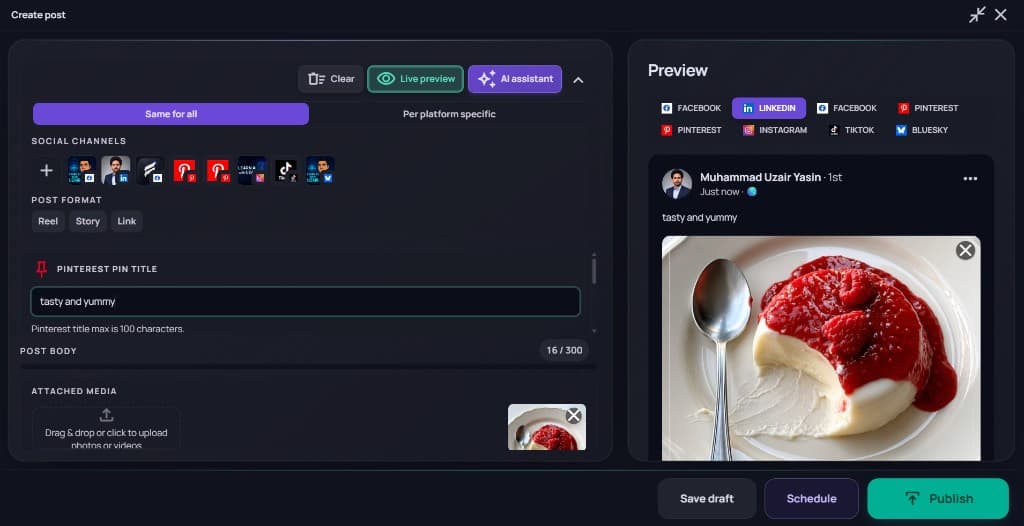
Switch to Per platform specific only when a network needs different copy or media. Keep Live preview on while you flip pills so each channel still looks right.
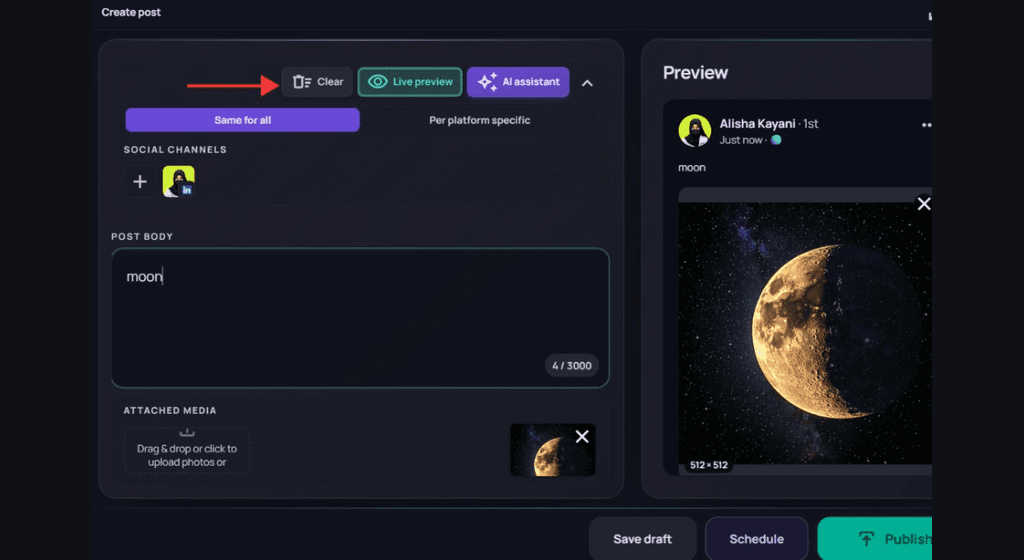
Find the Clear button
In Create post, the Clear button sits at the top of the composer (trash icon + Clear), next to Live preview and AI assistant. Use it when you want to wipe the current draft and start over.
Confirm Clear everything
After you select Clear, confirm Clear composer? — Clear everything removes all text, media, platform fields, and channel-specific drafts saved in this browser for the current workspace. Cancel keeps your work.
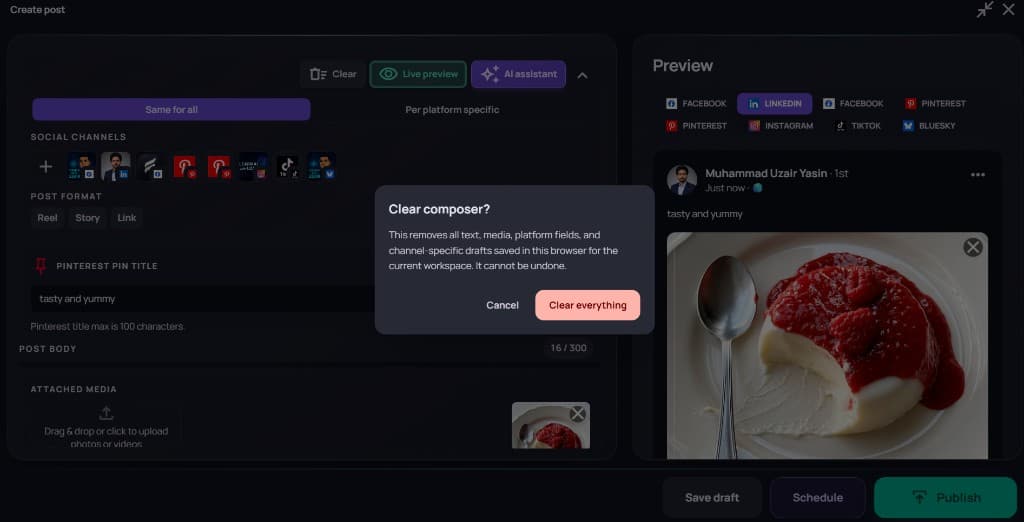
Clear everything cannot be undone. Save draft first if you might need the content later.
Recommended draft flow
- 1
Pick channels
Select the accounts that should receive this draft so previews and limits stay accurate.
- 2
Write and attach media
Add the post body and uploads. Watch character limits and the live preview on the right.
- 3
Preview every channel
Click each Preview pill to check how the same post renders on LinkedIn, Instagram, Pinterest, and the rest.
- 4
Tune per platform when needed
Switch to Per platform specific only for networks that need a different treatment.
- 5
Save, schedule, or publish
Use Save draft (keeps text and images), Schedule (with a picked time), or Publish from the same footer.
Drafts keep attached images. See Save and manage drafts for the drafts list. For Generate Post and image tools, open AI assistant — see Use the AI Toolkit in Create post.