Add an image on a draft
In Create post, use Attached media to drag & drop or click to upload photos or videos. The thumbnail appears under the post body and in Live preview. Images stay with the draft when you save.
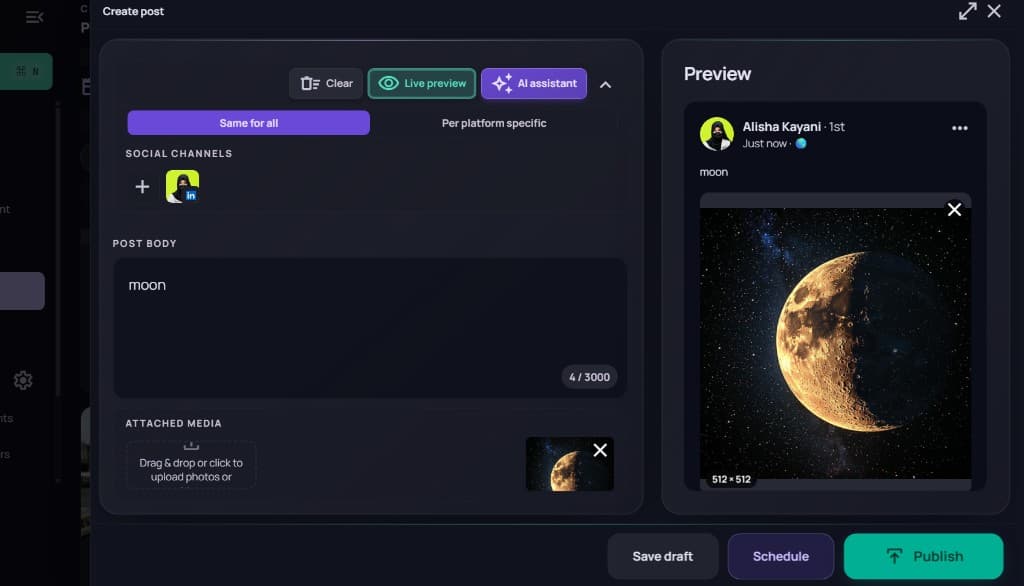
1. Save as draft
Select Save draft in the footer. Confirm Save as draft? — Postsiva shows how many channels will get a draft in parallel and lists each publish target (for example LinkedIn). Select Save draft again to confirm, or Cancel to keep editing.
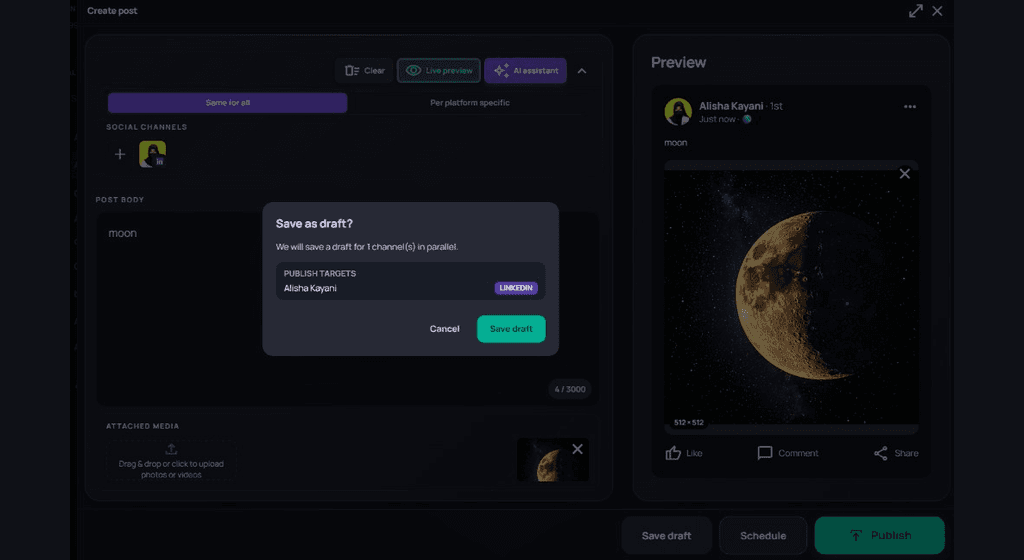
2. Find drafts under Published Content
Open Published Content in the sidebar, then select the Drafts tab. Each card shows the image thumbnail (when media was attached), channel icon, title/caption, and DRAFT badge.
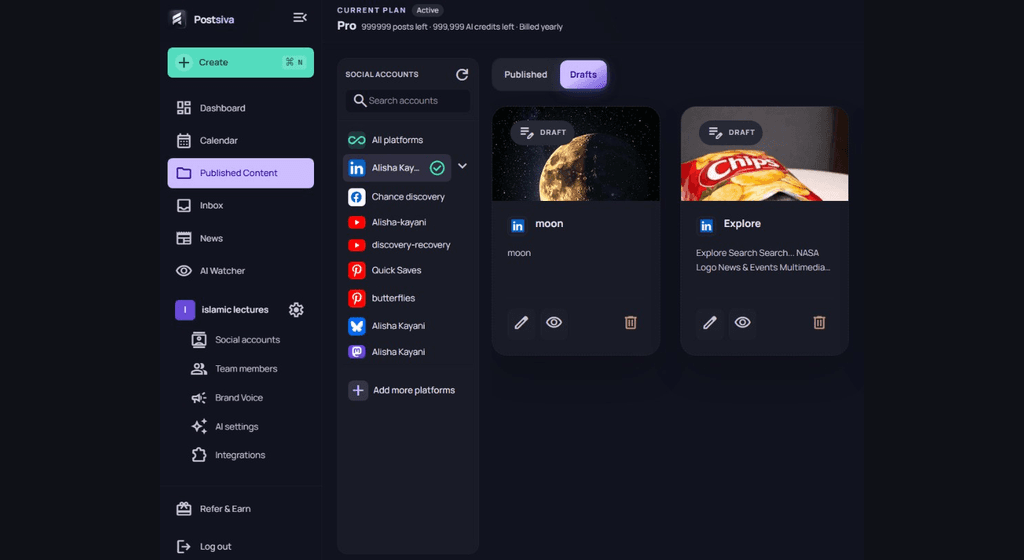
3. Edit, view, or delete a draft
- Edit (pencil) — reopen Create post to change caption, replace or add images, then save, schedule, or publish.
- View (eye) — preview the draft without editing.
- Delete (trash) — remove the draft from the list.
You can add or change images anytime while the item is still a draft. After you schedule it, use Edit scheduled post on the calendar instead.