Open Attach Media
In Create post, use Attached media (drag & drop or click) to open Attach Media. Import from device, library, stock, or cloud. Design with Canva when it shows Connected. Some design tools may show Coming soon.
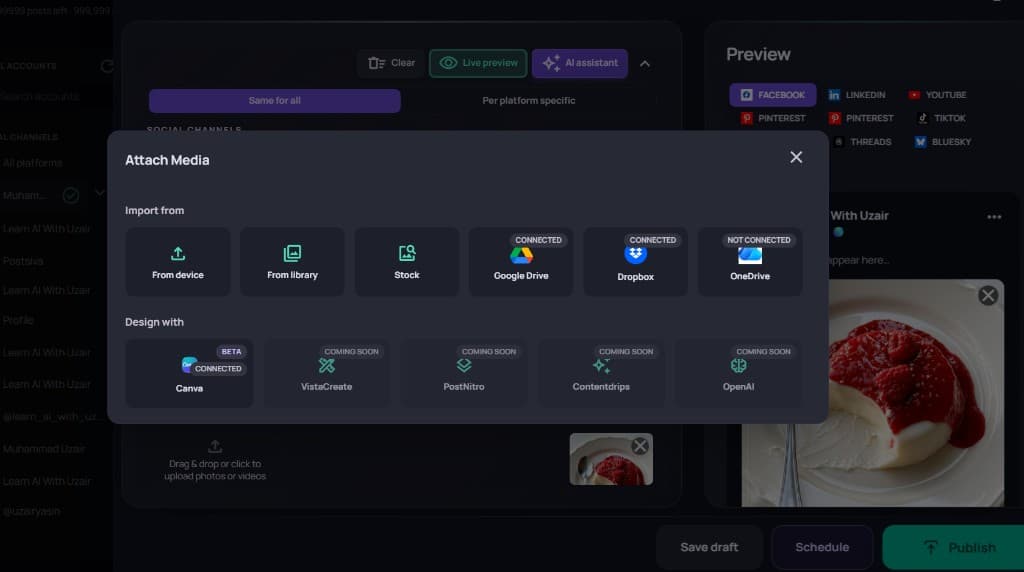
CONNECTED means that source is ready in this workspace. NOT CONNECTED means authorize it before you can browse files there.
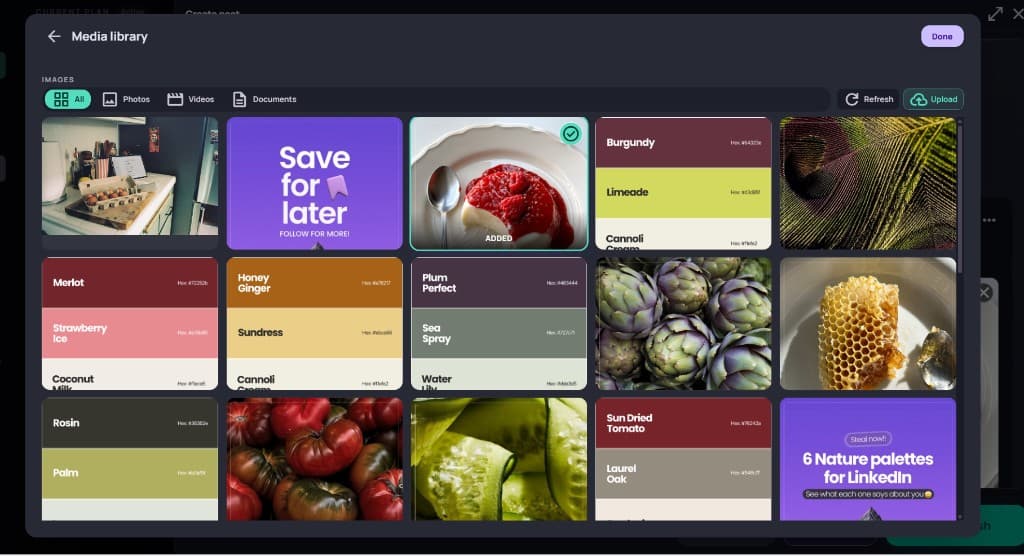
Media library
Choose From library to open Media library. Filter All / Photos / Videos / Documents, search, Refresh, or Upload. Select an item (it shows ADDED), then Done to attach it to the post.
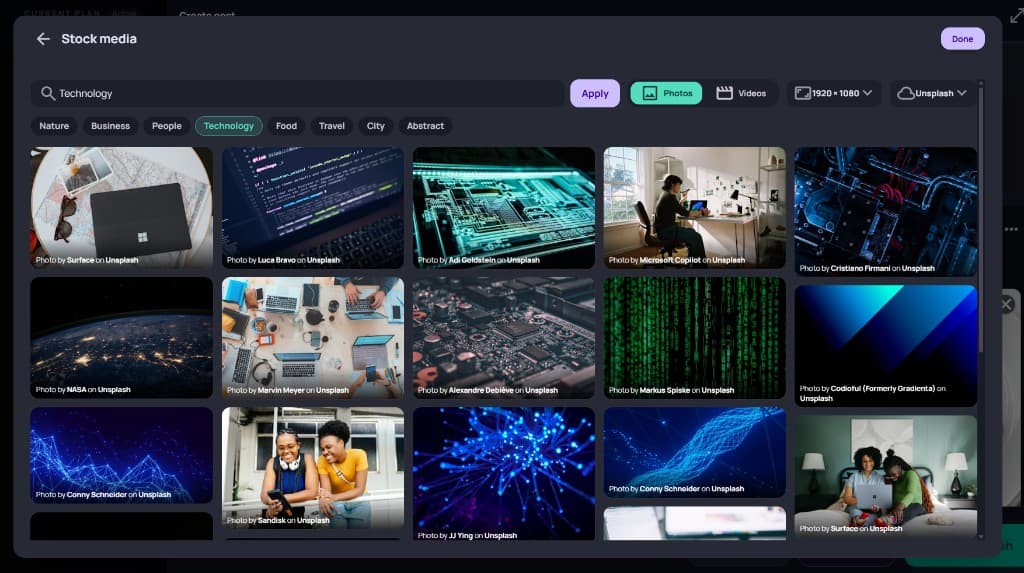
Stock media
Choose Stock to browse Stock media. Search (for example Technology), pick a category, switch Photos or Videos, set resolution and source (such as Unsplash), then select images and Done.
Connect Canva and cloud drives
- 1
Open Attach Media
From Create post, open the media picker so you can see Google Drive, Dropbox, OneDrive, and Canva status.
- 2
Authorize the provider
If a source shows NOT CONNECTED, select it and complete sign-in.
- 3
Pick files into the draft
Browse the connected source, select assets, then return to Create post — thumbnails appear under Attached media and in Live preview.
Cloud and Canva keep creative files closer to publishing so you avoid manual downloads for every draft.